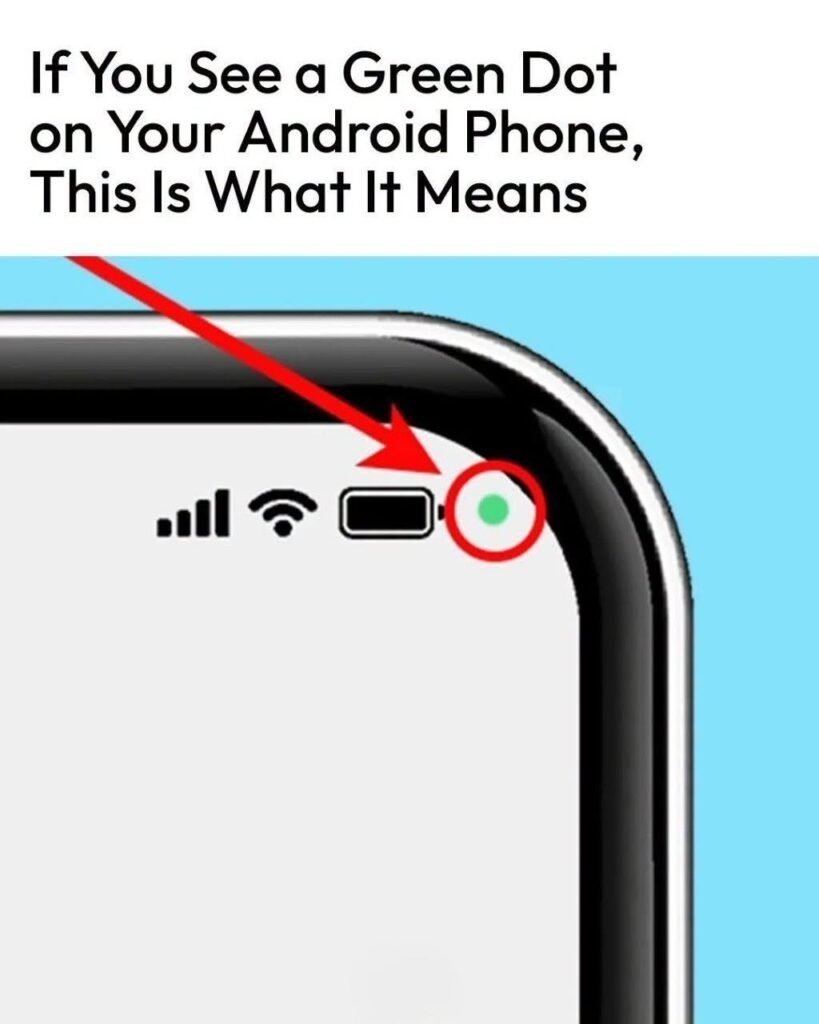

See a Green Dot on Your Android Phone? Here’s What It Means Android Privacy Indicators: Camera, Microphone, and Location Dots
Seeing a small green dot (often near the top-right corner or status bar on modern Android versions such as Android 12 and newer) is a built-in privacy alert. It tells you that an app is actively accessing your camera, microphone, or—on some device skins or status overlays—location services.
What the Green Dot Actually Signals
Modern Android releases introduced system-level privacy indicators so background or unexpected sensor usage cannot happen silently without your awareness:
-
Camera Access: A green dot appears whenever an app opens or actively uses your front or rear camera—whether you are taking a photo, joining a video call, scanning a QR code, or using an augmented-reality feature.
-
Microphone Access: A green dot also lights up when an app accesses your microphone for voice recording, voice typing, phone or video calls, voice assistants, or audio capture.
-
Expanded Indicator Chip: When you swipe down the quick settings or status area while the indicator is active, Android typically expands the small dot into a pill or badge showing a camera icon, microphone icon, or both, along with the name of the app currently using that hardware.
-
Manufacturer & App Variations: Depending on your phone brand (such as Samsung, Google Pixel, OnePlus, Xiaomi, or Motorola) and Android version, the exact placement, size, or icon shape inside the indicator pill can look slightly different, though the privacy purpose remains the same.
Normal Uses vs. Reasons to Investigate
Not every green dot means something is wrong. Many everyday tasks legitimately trigger it:
-
Expected & Normal: Opening the Camera app, speaking into a messaging voice note, using voice search, or hopping on a video call will immediately display the green indicator and turn it off shortly after you finish.
-
Worth Checking: A green dot appearing when you are not using the camera or microphone, lingering after you close an app, or popping up while your screen is locked or while you are browsing an unfamiliar app deserves a quick check.
-
App Bugs or Stuck Sessions: Sometimes a video call, camera preview, or social media app does not release the microphone or camera cleanly right after you switch away, causing the indicator to stay visible briefly until the app closes or resets.
How to Check Which App Used Your Camera or Microphone
If you notice the green dot unexpectedly, you can inspect recent sensor activity right inside your phone’s settings:
-
Swipe Down to the Indicator: Pull down from the top of the screen when the green dot is visible and tap the camera/microphone indicator badge if your device lets you tap it directly to see the active app.
-
Open Privacy Dashboard / Permission Manager: Go to Settings > Privacy (or Settings > Security & privacy on many devices) and open Permission manager or the Privacy dashboard.
-
Review Camera and Microphone Logs: Tap Camera and Microphone to see which apps have Allowed access and which ones accessed them recently (within the past 24 hours).
-
Tighten Permissions: Select any app that does not need camera or microphone access for its core purpose and change it to Don’t allow or Ask every time.
Practical Steps to Keep Your Privacy Tight
-
Audit Installed Apps Periodically: Remove older or rarely used apps—especially flashlight utilities, keyboard apps, photo filters, or games—that hold broad camera or microphone permissions they do not truly need.
-
Disable Mic/Camera Access When Not Needed: Even trusted messaging or social apps can be set to Ask every time or restricted to Only while using the app rather than unrestricted access.
-
Use Quick Settings Toggles (Where Available): Many Android builds include quick-settings tiles to turn off Camera access or Microphone access phone-wide if you want an extra layer of control during sensitive moments.
-
Keep Android and Apps Updated: System updates patch security vulnerabilities and refine privacy indicator reliability across background services.
-
Restart if Stuck: If a green dot remains stuck after closing all apps, restarting the phone clears hung media or audio sessions and confirms whether an app is actively re-triggering it.